Importing from Sportscode

For those of you that want the added benefit of bringing in your Codes, Labels & Free Text paired with your Video from Sportscode into Just Play, there is an excellent option at your disposal.

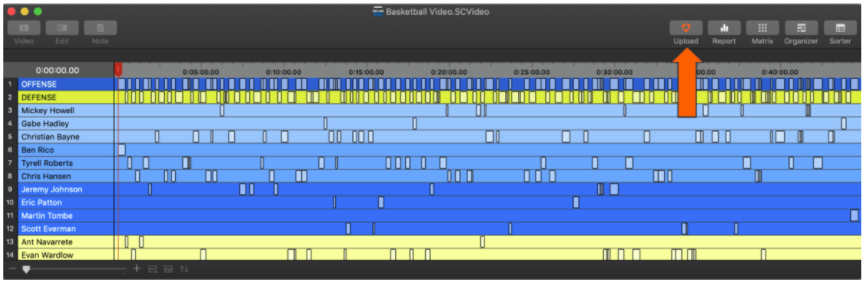
To begin this process, click the “Upload” button in Sportscode on your timeline:
Next, you’ll want to select a location on your computer to send the file to. We would recommend using “Desktop”:
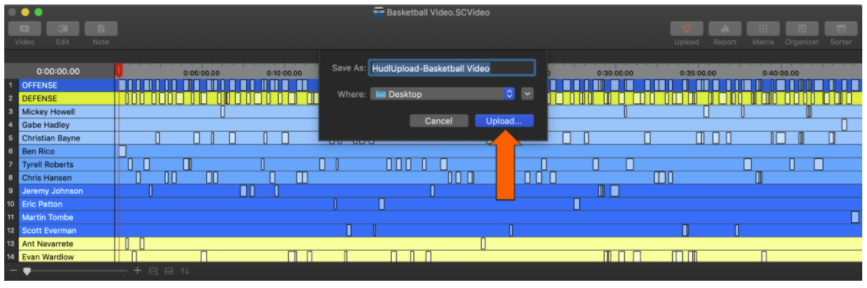
This will export your video AND your data to a folder on your desktop for you to use. After you’ve exported the file, go to your Just Play account’s Video Library or Playlists (Groups), and click “Add Video”.

In this window, you’ll want to select “Import from Sportscode” and assign a naming template. The naming template will use the data value associated with the clip from the column you select. (Example: Using Code + Free_text would name each clip “+2 Transition”).

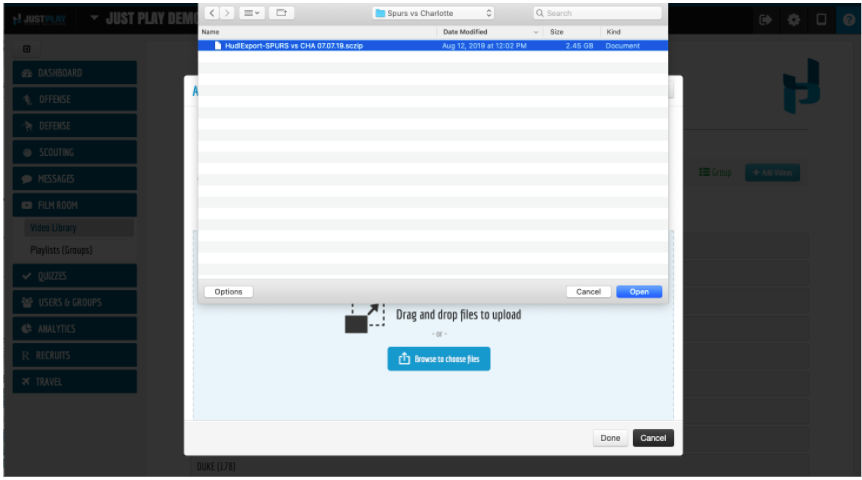
Lastly, you can either drag and drop the .sczip file into the window, or click the blue “Browse to Choose Files” button, and select from your desktop.
Skip to main content

Scouting Report Templates Overview

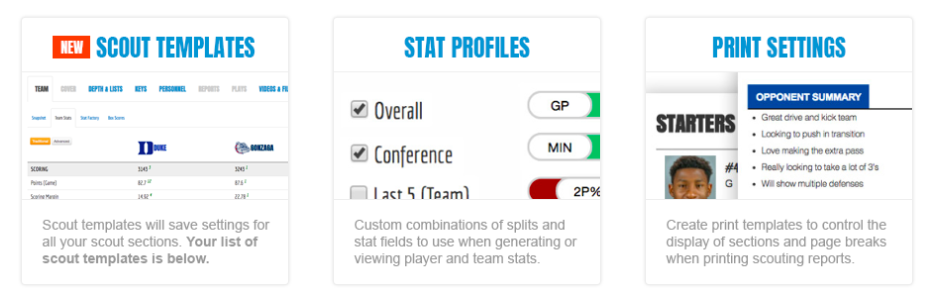
Scouting Report Templates allow coaches to create a variety of reports necessary for preparation from Coaches Reports, Player Reports, Bench Sheets, Game Day Reports and more. Scouting Report Templates are comprised of 3 major sections: Templates, Stats Profiles and Print Settings. 

Scouting Report Templates allow users to templatize:

  • Cover Notes
  • Key Sections & Text 
  • Personnel Notes for Each Player
  • Automated Skills List [Ex: Best 3PT Shooters (Min: 10 3PA)]
  • Statistical Reports
    • Team Comparison
      • Traditional
      • Advanced
    • Team Stats
    • Team Summary
    • Team Trends 
    • Player Productivity

Stat Profiles allow coaches to create a variety of profiles that they can use in the numerous types of reports within Just Play. This functionality will also make it easy for users to toggle between different settings for reports.

Please note that the competition level and purchased package will change your access to certain statistics and reports.

Print Settings allow coaches to create a variety of print templates that can be used with multiple templates or the same template. This flexibility allows coaches to select the unique sections of the scout they wish to have in the print out, along with the order and settings.


Skip to main content

Organizing Your Scouting Dashboard / Add New Scout

Organizing Your Scouting Report Dashboard:

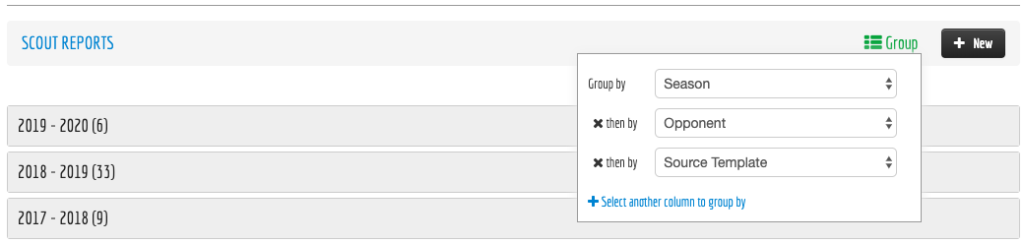
Groupings are on a per user basis and allow you to stay organized with where scouting reports are located. We recommend using the Season > Opponent set up, but you’re welcome to create custom organization as you wish such as Sources Template for any custom templates you create! 

To Create a New Scouting Report:

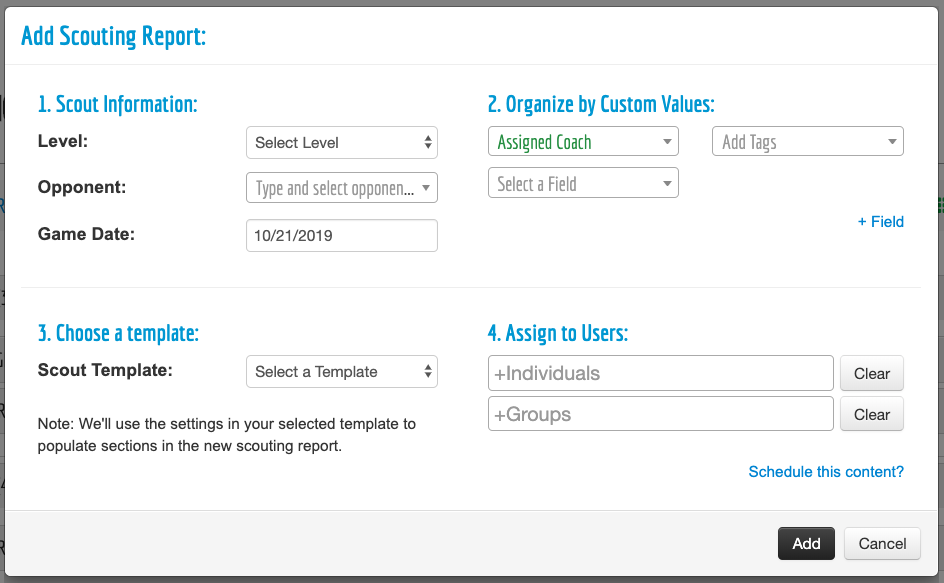
To begin preparing for a new opponent, click the “+ New” button. This will open the menu below. Where you will be able to: 

  • Select Your Level / Team*
  • Select Your Template
  • Game Date
  • Organize by Custom Fields/Tags such as: Assigned Coach
  • Assign Content To Users or Schedule Content to Automatically Assign to Users on a specific Date/Time.

Skip to main content

Adding Frame Notes to Plays

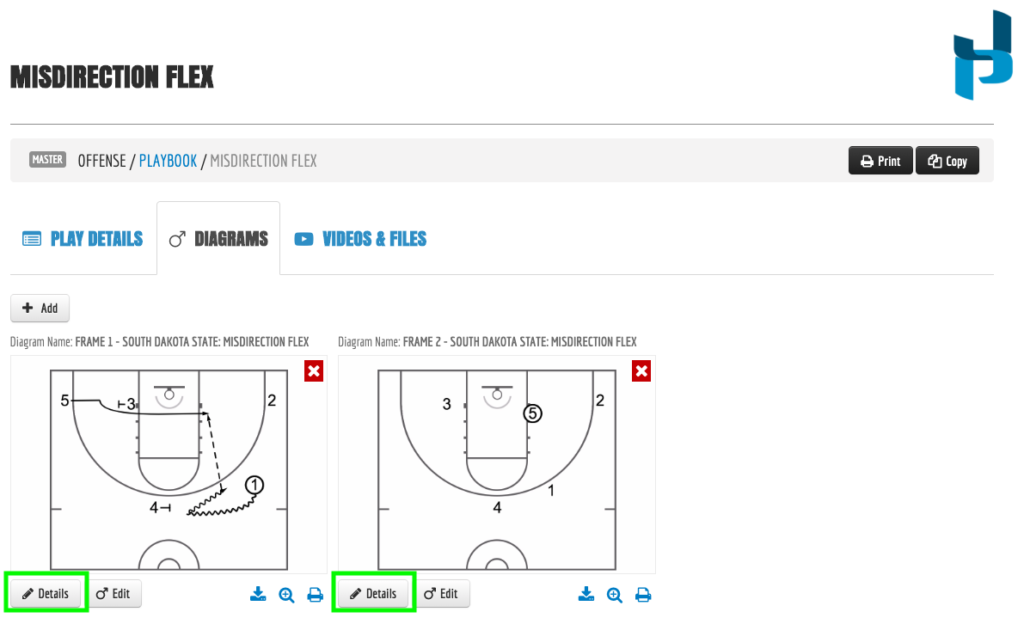
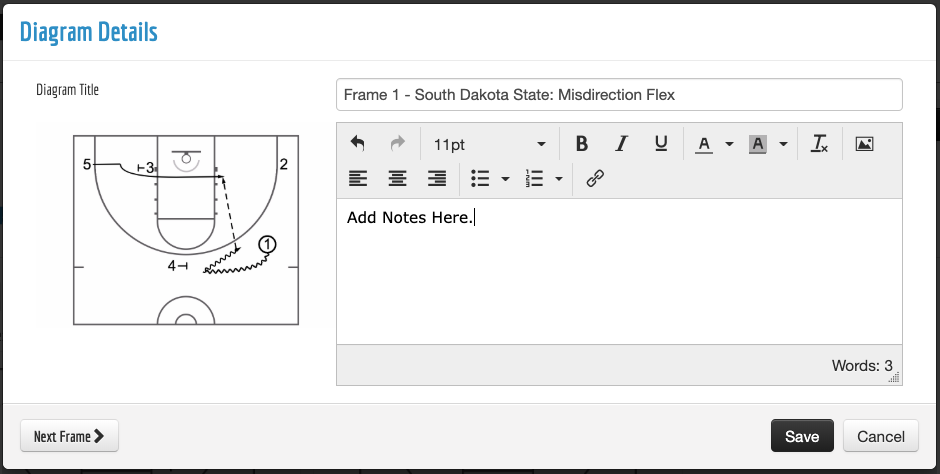
To add frame notes, you’ll need to select the DETAILS button below the diagram frame. You will then be able to add frame notes. These notes will appear underneath the frame on print and the app with toggles for both. If you are concerned with print, we recommend be avoid bullets and long strands of text depending on your desired print settings.

Skip to main content

Controlling Access to Your Playbook

One of the biggest advantages to Just Play is the ability to control what content is viewable in the app, providing you the ability to build your database of plays, scouting reports, presentations etc.

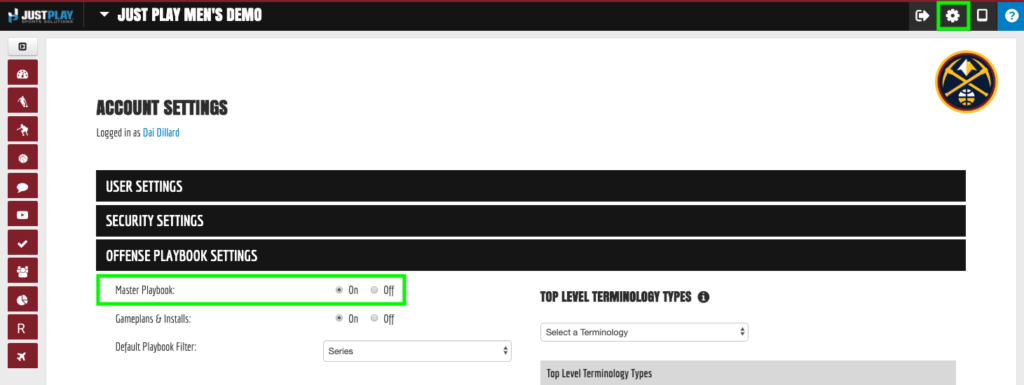
As a Coach, you have the ability to make anything in the system ACTIVE or INACTIVE this will show/hide the content from the App. However, below will show you how you can hide your entire Master Playbook.

You can simply turn off your Master Playbook in the playbook settings menu of your Team Admin.

When Master Playbook is turned off, the Player App will not show Playbook Filters (Top Level Terminology) or Terminology. Presentations will be the only method of sharing content.


Skip to main content

Setting Up How You View Games at an Event (Search & Sort)


Skip to main content

Displaying and Creating New Columns For Recruits